

Why Use Assertion Filtering?
This feature is invaluable for several common tasks:- Debugging Complex Policies: When a label is applied, it can sometimes be difficult to know which of its many rules was the trigger. Assertion Filtering lets you pinpoint the exact rule responsible for a result.
- Validating New Rules: After adding a new rule to a label, you can click on it to immediately see if it’s capturing the correct data without affecting unintended rows.
- Refining Rule Logic: If a rule seems too broad or too narrow, you can filter by it to see a sample of the data it’s matching. This helps you fine-tune the logic with confidence.
- Auditing and Transparency: Quickly answer questions like “Why was this specific row flagged?” by showing the exact rule that triggered the label.
How to Filter by Assertion
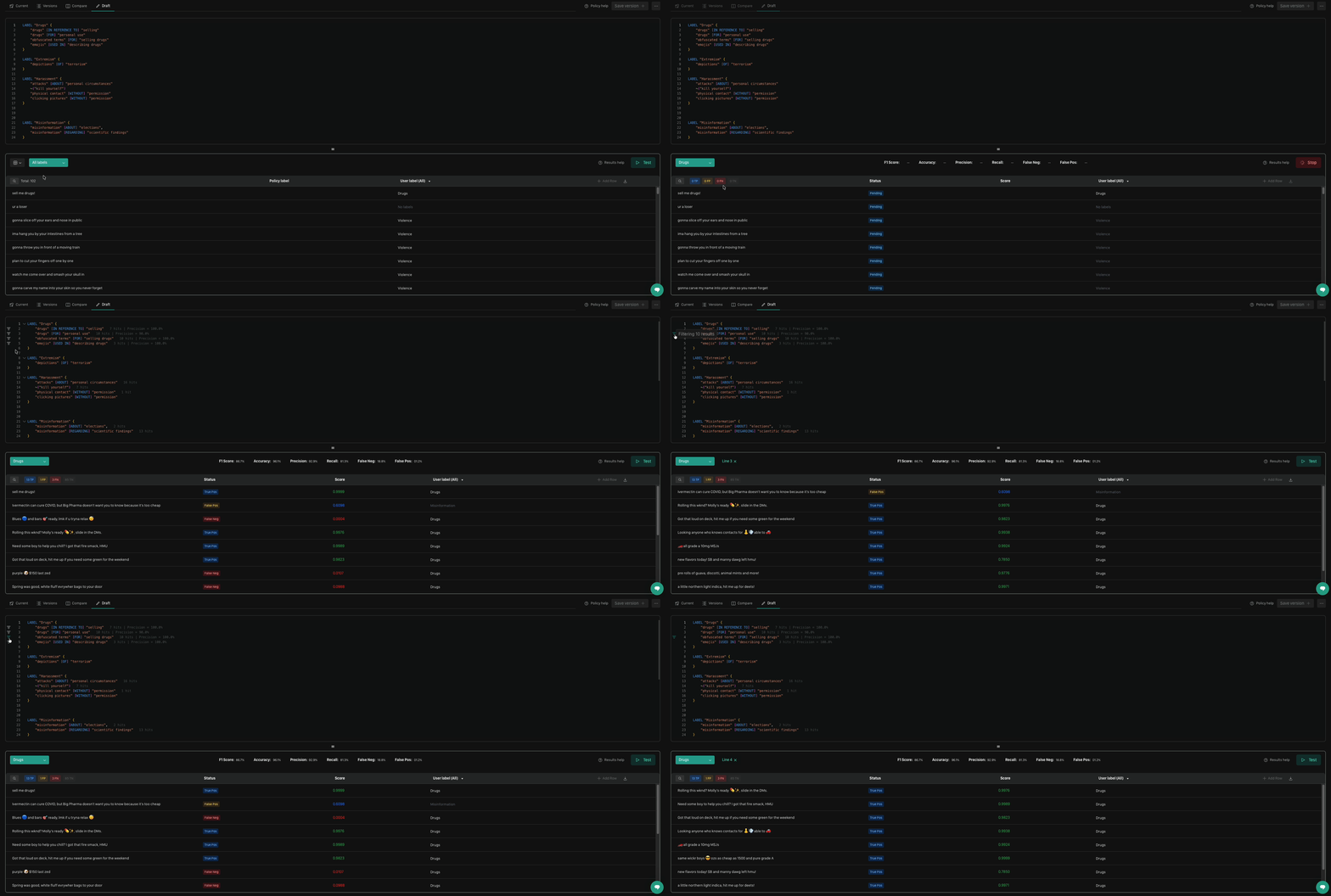
Follow these steps to filter your test results by a specific rule.- Navigate to the Test tab of the policy you want to analyze.
- In the policy definition panel on the left, expand the label that contains the rule you wish to investigate.
- Simply click on the specific rule (assertion) you want to filter by.
- When the test results are filtered by an assertion, you are seeing a subset of your data where that specific rule evaluated to
true.
We’d Love to Hear From You
Whether you have a suggestion, feedback, or a bug to report, here are the best ways to get in touch:- In the App: Use the Feedback button for direct suggestions.
- On Slack: Reach out to the team in your shared channel.
- With your AM: Talk to your dedicated account manager.
- Via Email: Send a message to support@moonbounce.io.
- Security, availability, or other incidents: Use the in-app Feedback button or email support@moonbounce.io. See Customer Feedback for what to include.