

Overview
To begin, you will need an existing dataset. If you haven’t created one yet, you can follow this guide.Select the data to label
Data Selection
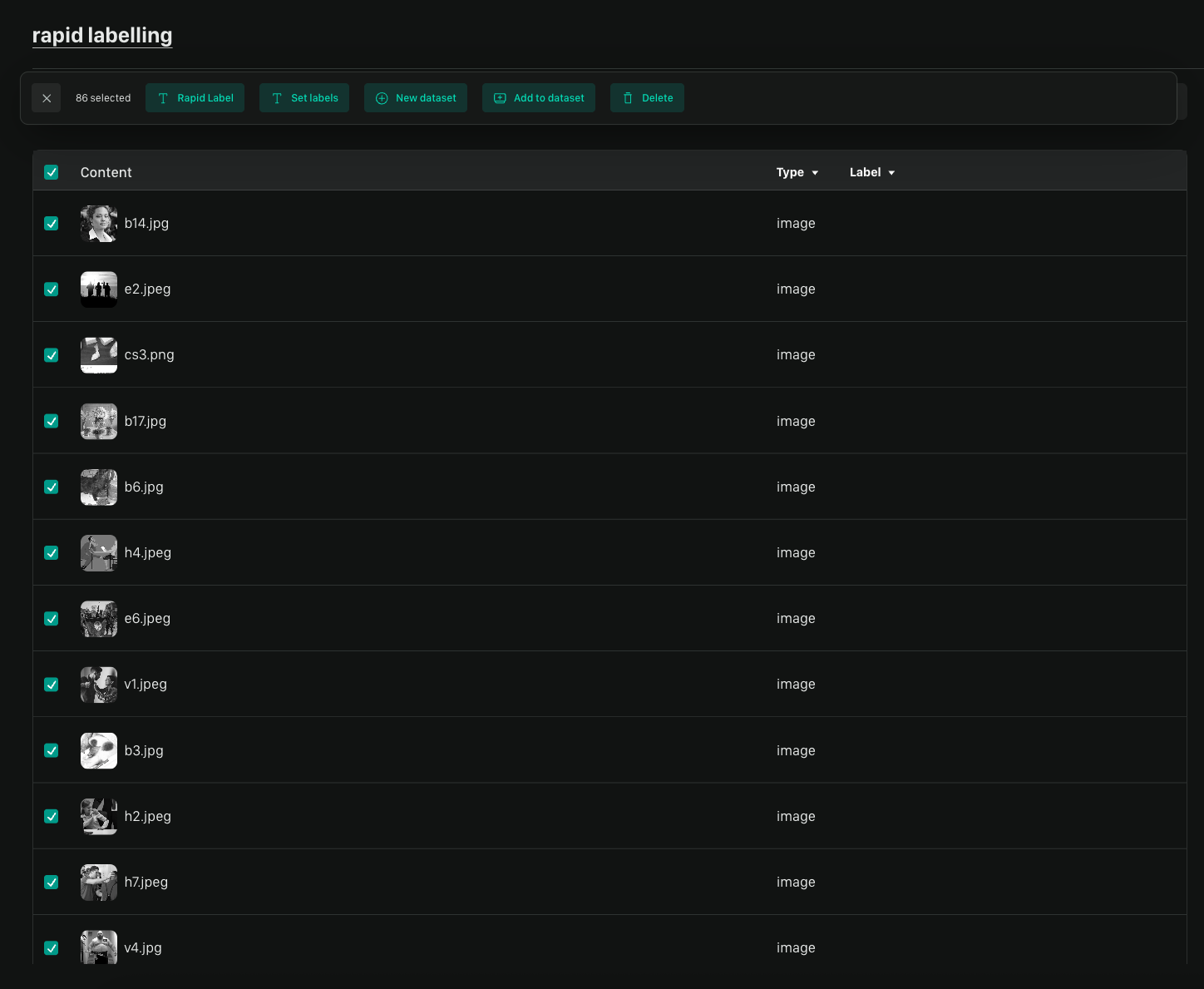
You can select any number of rows in your dataset to begin labelling. This can be all the data in your dataset or a specific subset.Rapid Data Labelling works the same if you select all your data or only a few
rows.
Choosing Your Label
After selecting your data, choose the label you wish to apply. If your dataset already has labels, you can select one from the dropdown menu. If you’re starting fresh, you can create a new label here.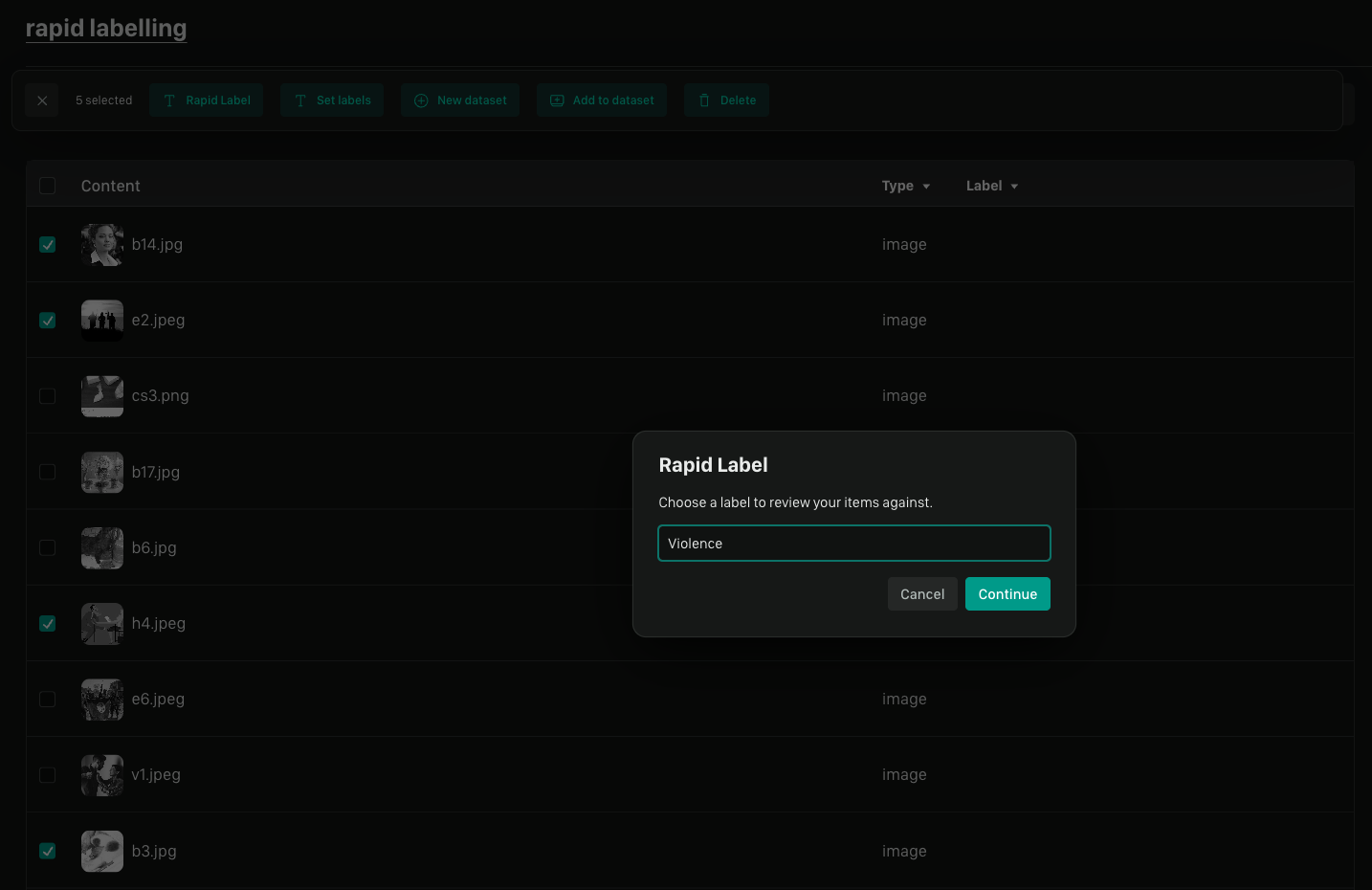
Labelling Data
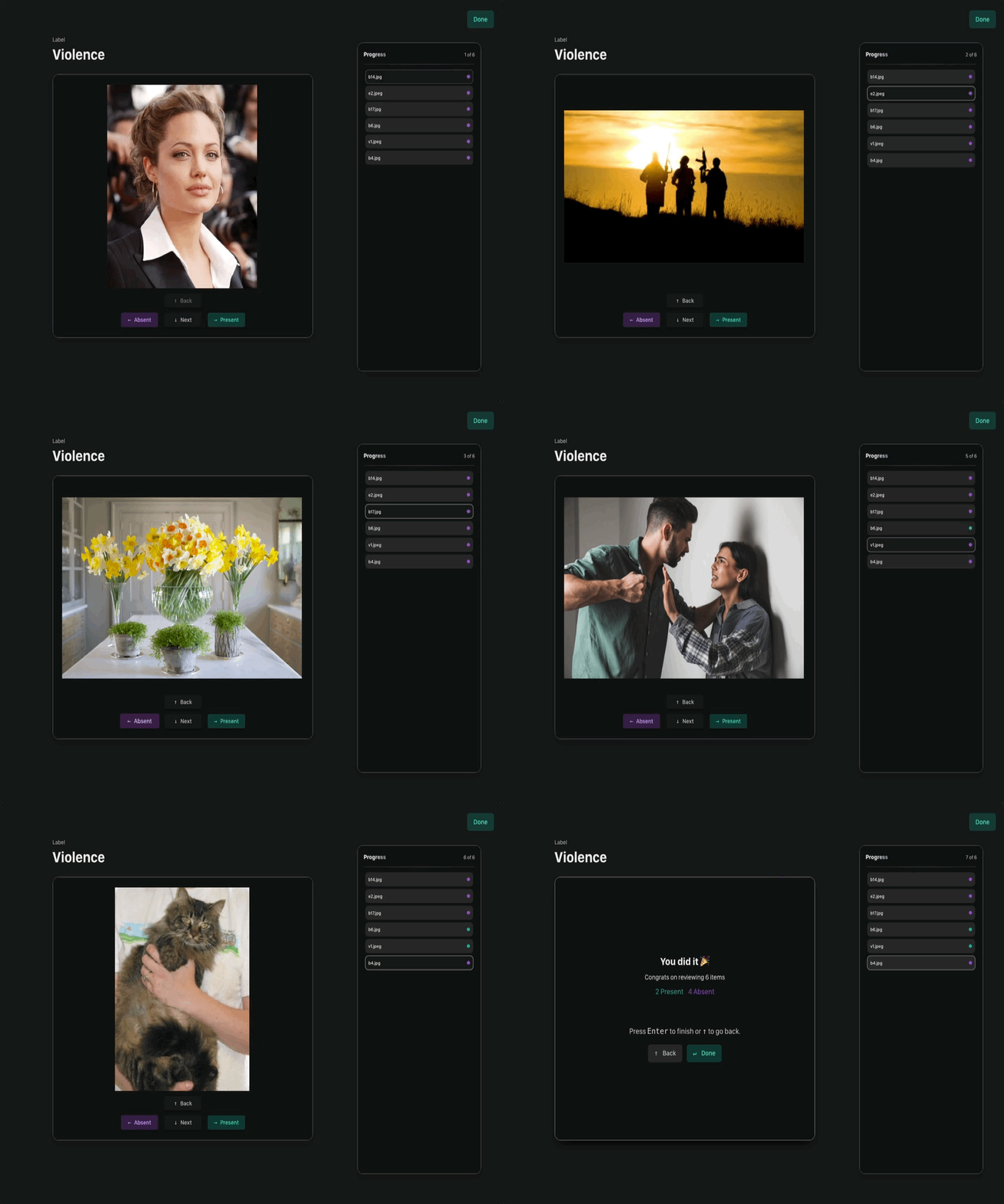
Once you’ve chosen your label and clicked “Continue,” you will enter the labelling view. Use your keyboard to navigate and apply labels. Key Controls:- Navigate: Use the
↑and↓arrow keys to move between data rows. - Apply Label: Press the
→arrow key. The item will be highlighted in green. - Do Not Apply Label / Remove Label: Press the
←arrow key. The item will be highlighted in purple.
For longer text entries (e.g., over 400 characters), you may need to scroll
within the content box to view the entire item.
Finalizing Changes
Your changes are saved automatically in the background as you work. When you are finished with your session, it is still a good practice to click Done to exit the view. You can then start a new session by selecting the same data to apply a different label, or select a new set of rows.Best Practices & Tips
Here are a few recommendations to help you get the most out of Rapid Data Labelling, especially when working with large datasets or as part of a team.Labelling Large Datasets
The Rapid Labelling view treats a label as either present or absent on a piece of data; there is no intermediate “unlabeled” or “skipped” state for the label you are currently applying. Because of this, the system doesn’t track your overall progress through a large selection. For datasets with thousands of rows, we recommend labelling in manageable batches (e.g., a few hundred rows at a time). This makes it easy to remember where you left off if you need to take a break.Collaborative Labelling (Working in a Team)
Multiple users can label the same dataset simultaneously, which is great for team productivity. To ensure no work is accidentally overwritten, it’s important for team members to coordinate. The system operates on a “last write wins” basis. If two users apply a label to the same row at the same time, the final action to be saved will be the one that is kept. To avoid this, we recommend that team members select and work on distinct sets of rows. For example, one user can take rows 1-500, and another can take rows 501-1000.We’d Love to Hear From You
Whether you have a suggestion, feedback, or a bug to report, here are the best ways to get in touch:- In the App: Use the Feedback button for direct suggestions.
- On Slack: Reach out to the team in your shared channel.
- With your AM: Talk to your dedicated account manager.
- Via Email: Send a message to support@moonbounce.io.
- Security, availability, or other incidents: Use the in-app Feedback button or email support@moonbounce.io. See Customer Feedback for what to include.