

- Version Control: Seeing exactly what changed between an older version of a policy and a new one.
- Reviewing Updates: Checking a new “draft” policy against the current “production” policy before deploying it.
- Auditing Automated Policies: Comparing a policy generated by our Automated Policy Creation (APC) feature against a manually refined version.
- Performance Analysis: Comparing key metrics between two policy versions using the same dataset to see the real-world impact of your changes.
How to Compare Two Policies
Comparing policies is a straightforward process.- From the Policies tab, select a policy and navigate to the Compare tab.
- The Origin Policy (left side) will default to your ‘Current’ active version.
- The Modified Policy (right side) will default to the newest version to compare against.
- You can change either policy version using the dropdown menus.
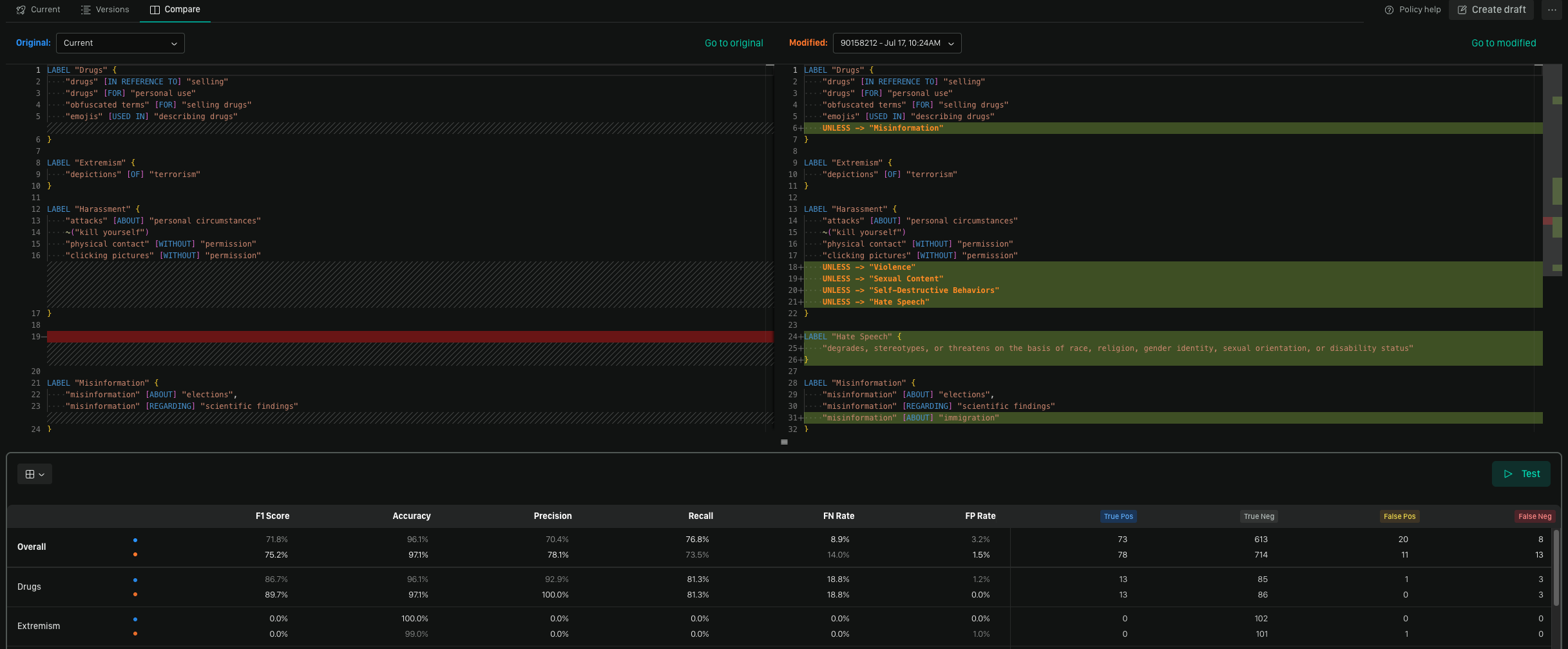
Understanding the Comparison View
The comparison view is designed to make differences immediately obvious. It shows how the Modified Policy has changed relative to the Origin Policy, both in its logic and its performance.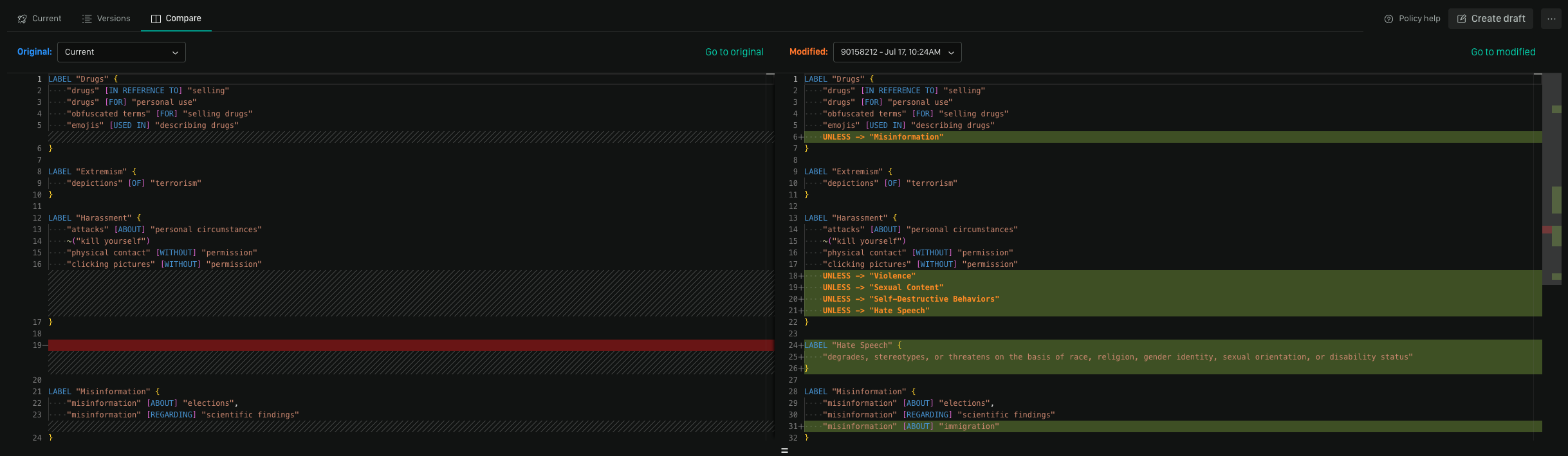
Comparing Performance Metrics
At the top of the view, you’ll see a side-by-side comparison of key performance metrics. This table uses a single dataset to run both policy versions, giving you an apples-to-apples view of their effectiveness. Use this to quantify the impact of your changes and ensure a new version performs as expected before you deploy it.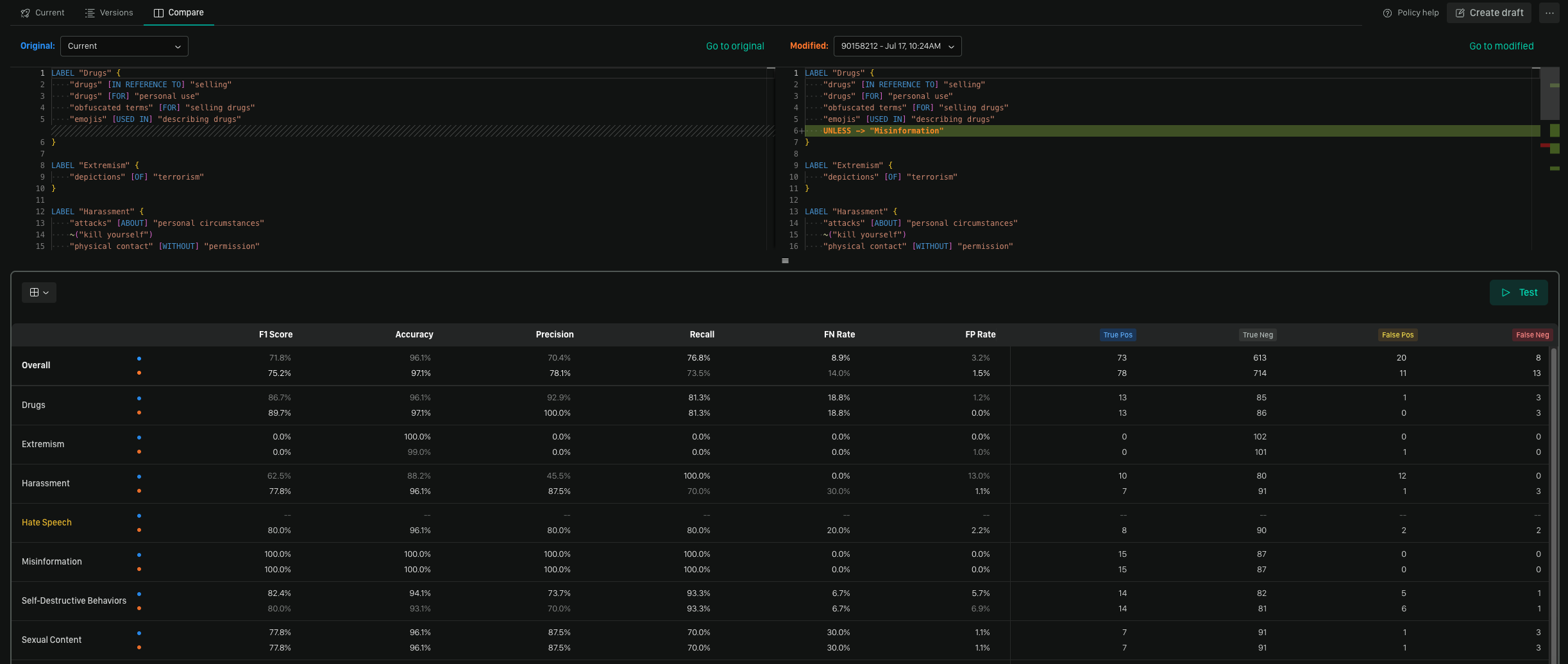
Any rows highlighted in yellow indicate a label present in one policy but not in another.
Reading the Policy Diff
For policy diff, the view is split into two panels for comparing the policy logic:- Left Panel (Origin Policy): This is your reference policy. Think of it as the original or “source of truth” for the comparison.
- Right Panel (Modified Policy): This panel shows the policy you are comparing against the origin. All changes are highlighted here.
- Red Highlight: Shows lines that exist in the Origin Policy but were removed from the Modified Policy.
- Green Highlight: Shows lines that were added to the Modified Policy and do not exist in the Origin Policy.
- No Highlight: Indicates lines that are identical in both policies, providing context for the changes around them.
Reading the Metrics Diff
The metrics diff view uses a table to compare the performance outcomes of both policies against the same dataset.- Top Metrics (Origin Policy): The metrics here represent the outcome of your Origin Policy’s metrics against the dataset.
- Bottom Metrics (Modified Policy): The metrics here represent the outcome of your Modified Policy’s metrics against the dataset.
- Bolded Metrics: Indicates the higher-performing metric in a direct comparison, making it easy to see which policy performed better for a specific measure.
- Yellow Highlighted Labels: Indicates that a label present in either your Origin Policy or Modified Policy but not in the other. This helps you spot newly tracked or removed labels.
Best Practices for Policy Comparison
Establish a Clear Base
When initiating a comparison, always start by selecting your “source of truth” as the Origin Policy. For example, if you’re reviewing changes for a new version, select the current, active policy as the base and the new draft as the policy to compare against it. This makes the additions and removals intuitive to read.Review the Metric Impact
A change in policy logic might look correct on its own, but it could have unintended consequences on performance. Always check the metrics comparison to validate that your changes produce the desired outcome—whether that’s improving precision, increasing recall, or maintaining overall performance.Use as a Pre-Deployment Check
Incorporate the compare feature into your workflow as a final review step. Before you replace an active policy, run a comparison against the new version to get a clear, final summary of the changes you’re about to deploy. This can help you catch unintended alterations and confirm that all expected changes are present.We’d Love to Hear From You
Whether you have a suggestion, feedback, or a bug to report, here are the best ways to get in touch:- In the App: Use the Feedback button for direct suggestions.
- On Slack: Reach out to the team in your shared channel.
- With your AM: Talk to your dedicated account manager.
- Via Email: Send a message to support@moonbounce.io.
- Security, availability, or other incidents: Use the in-app Feedback button or email support@moonbounce.io. See Customer Feedback for what to include.