Home Page
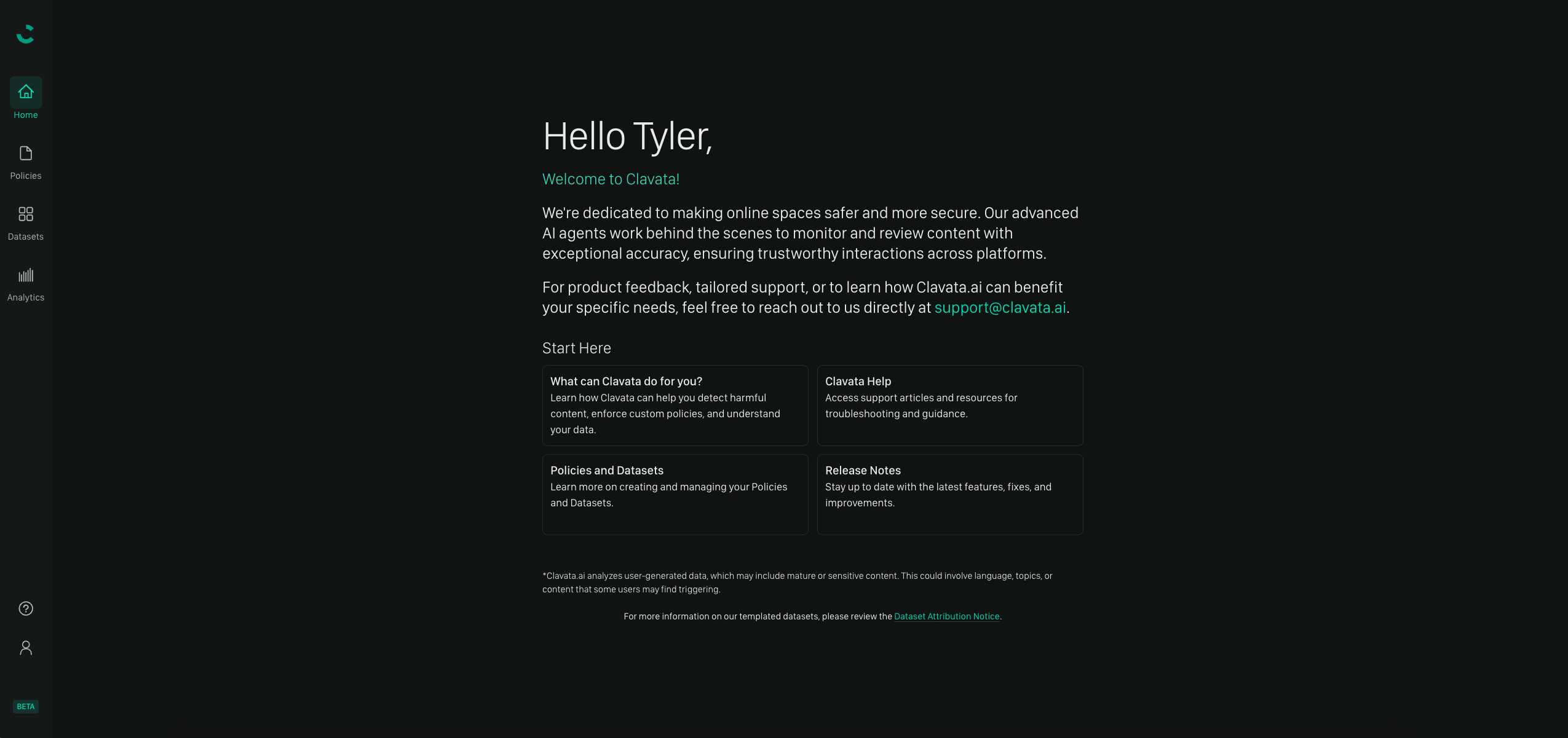
From the Home Page, you can easily access key areas of the system. This includes:- The Policies page, where you can create or manage your policies
- Datasets, to curate, tag, or upload new data for testing
- Analytics, where you can view charts and graphs related to your instance
- Admin, where can add/remove users from your instance or adjust their roles
- Help article quick links, to help get you up to speed on using clavata
Navigation Bar
On the left side of the screen, you’ll find the navigation bar. This allows you to:- Return to the Home Page from any page in Clavata.
- Manage your Policies, where you can create, edit, and otherwise view details of your Policies.
- Access the support center for access to our reference documentation.
- View and manage your user account.
Manage Policies Page
In the “Manage Policies” section, you have the ability to:- View and edit existing Policies.
- Manage your Policies, including updating their states, viewing the version numbers, and reviewing the last edit dates.
- Identify policies using their unique IDs, displayed next to each policy name.
- Create new Policies by selecting either:
- A blank template
- Pre-populated templates provided by Clavata.
Policy Editor
On the Editor page, you can select an existing Policy for modification. Once selected, you are able to:- View the configurations of your Policy.
- Add, edit, or remove Sections or Rules.
- Adjust Signal Lists.
- Otherwise generally refine your Policy.
- Run tests on the current Policy, or on your updated Policy.
Running a Test
Below the Policy Editor, you can run tests on your Policy using your datasets, or pre-defined datasets provided by Clavata. This includes:- Selecting a dataset or uploading your own, then clicking “Run Test.”
- Viewing the test results, which display lines of content analyzed, showing whether the content was classified as benign or harmful.
Analytics Coming soon!
We’d Love to Hear From You
Whether you have a suggestion, feedback, or a bug to report, here are the best ways to get in touch:- In the App: Use the Feedback button for direct suggestions.
- On Slack: Reach out to the team in your shared channel.
- With your AM: Talk to your dedicated account manager.
- Via Email: Send a message to [email protected].