Uploading a dataset
Clavata offers two ways to upload your datasets. Single row additions or bulk uploading. The process differs slightly between text and images.Add row (single uploads)
Clicking the + Add row button will bring up a modal where you can add an image or text and labels if desired. This is a single upload if you need to add a quick row.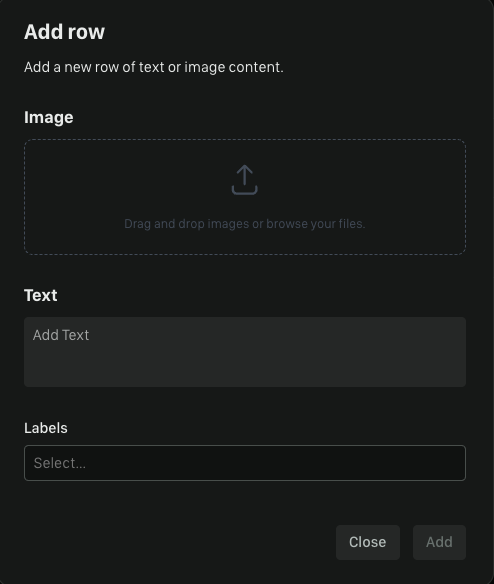
Bulk uploading
There are slight differences when it comes to bulk uploading so see below for your use case.Text
Test is fairly straight forward using a .csv and it only requires two columns.- Content: The text that you want to upload
- Labels: This should relate to the labels either in your policy or what you intend to write in your policy (e.g.,
dog,cat)- If the label column is left blank, the system will assume that the content of that row should not be caught by a policy
Labels must be comma separated and it is good form to have a space as well: dog, cat and not dog,cat.
Images (bulk-csv)
Images can be uploading using a modified csv from text.- Content: The image name you want. If you leave this blank, the system will return a blank title which is more difficult to search on
- Labels: This should relate to the labels either in your policy or what you intend to write in your policy (e.g.,
dog,cat) - ImageUrl: This is the url of the image you want to upload
Images (bulk)
In the bulk upload window, you can drag and drop images from your computer as you would on most other sites. You have the option of adding a label(s) or uploading with no labels.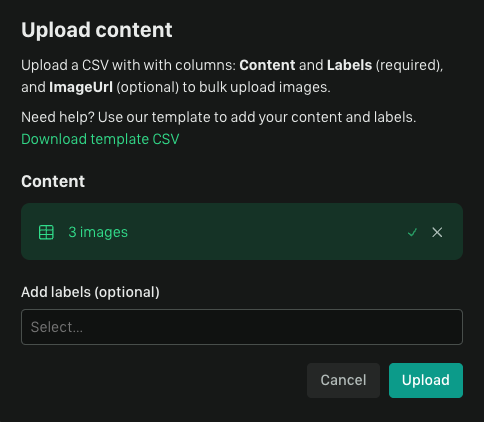
Labels are applied to all images. If you have images with different labels it is best to upload them in batches to ensure they get the correct labels. The csv method is faster if available.
Labelling data
Adding new labels
- You can click on a row of content and then add or remove labels individually for quick fixes
- For larger changes you can select all or select multiple rows and Set labels to make changes
All Content
The All content view contains a list of all the data you’ve uploaded to Clavata along with its original labels, type of content (text or image), and the content itself.We’d Love to Hear From You
Whether you have a suggestion, feedback, or a bug to report, here are the best ways to get in touch:- In the App: Use the Feedback button for direct suggestions.
- On Slack: Reach out to the team in your shared channel.
- With your AM: Talk to your dedicated account manager.
- Via Email: Send a message to [email protected].