

The label copilot is currently in beta and is actively being improved. Text
content is supported today; image support is coming soon.
How the Label Copilot Works
The copilot follows a four-step iterative loop:- Define Your Label — provide a label name and plain-language description; the copilot generates the syntax
- Evaluate Content — test the generated label against a dataset of real examples
- Review Signals — for any misclassified items, indicate which signals are firing correctly or incorrectly
- Clarify & Refine — answer the copilot’s clarifying questions to drive a refined, more accurate version of the syntax
Step 1: Define Your Label
The first step is telling the copilot what you want the label to detect. Two fields are required to generate:- Label name — a short, descriptive name for the label (e.g.,
hate_speech,spam_promotion) - Content modality — select Text (image support is coming soon)
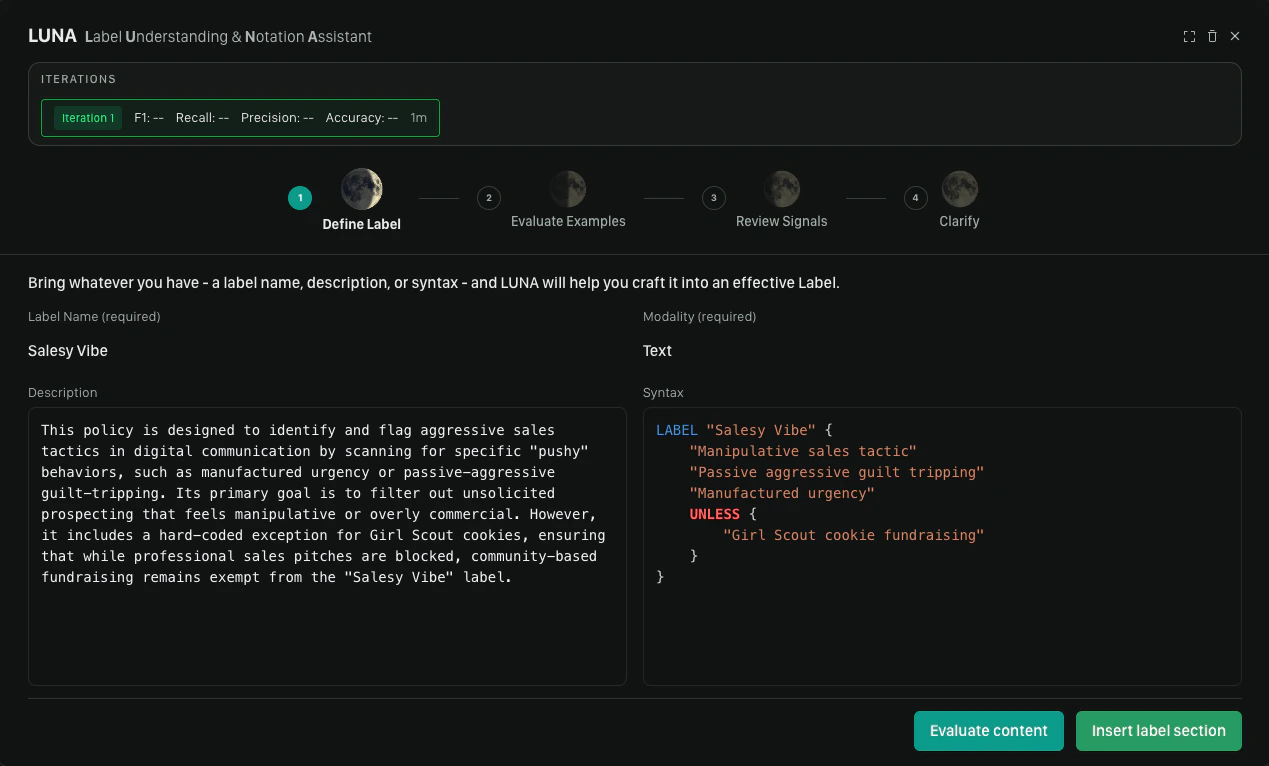
Step 2: Evaluate Content
With syntax generated, the next step is testing it against real content.You can add your label without testing by clicking Insert label selection.
Selecting a Dataset
Choose an existing dataset or create a new one. Your dataset should include a mix of content that should trigger the label and content that should not. A minimum of 3 positive (Label) and 3 negative (Not label) examples is required before running evaluation.If you are using the label copilot in an existing policy it will select your
current dataset.
Labeling Rows
For each row in the dataset, mark it with one of the following: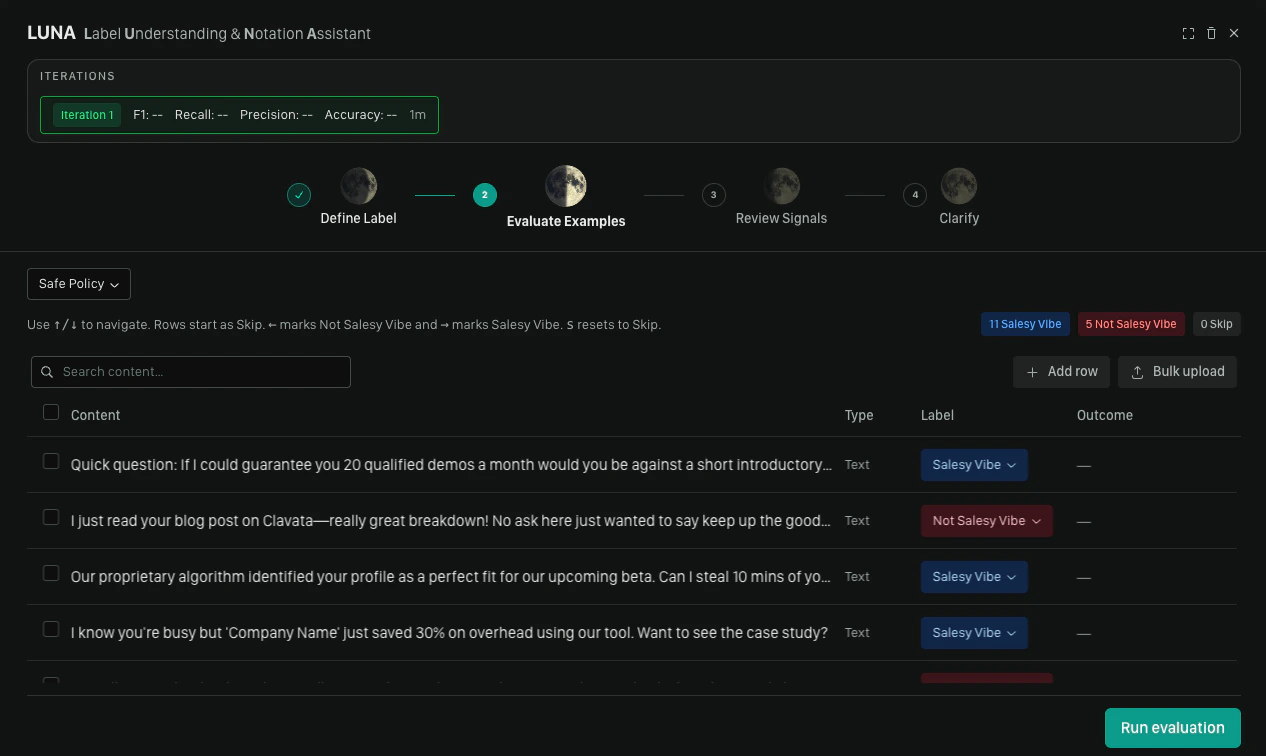
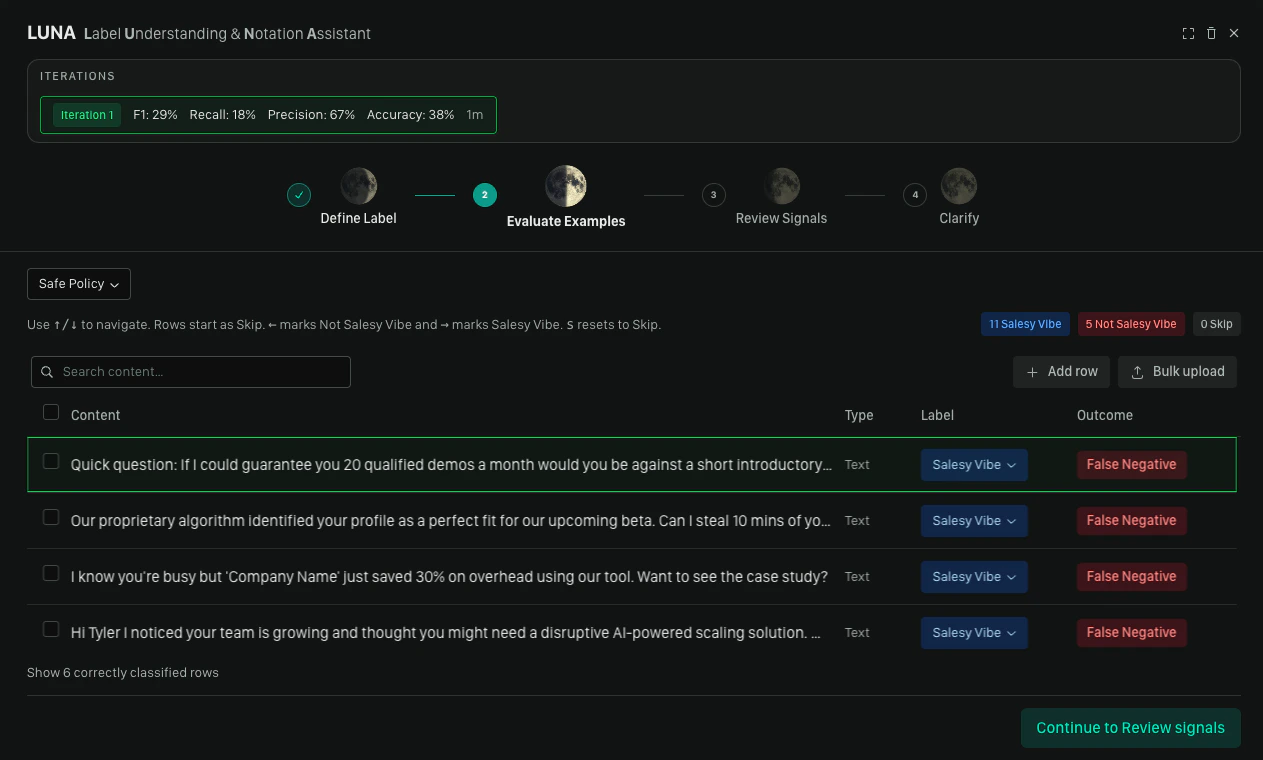
Running Evaluation
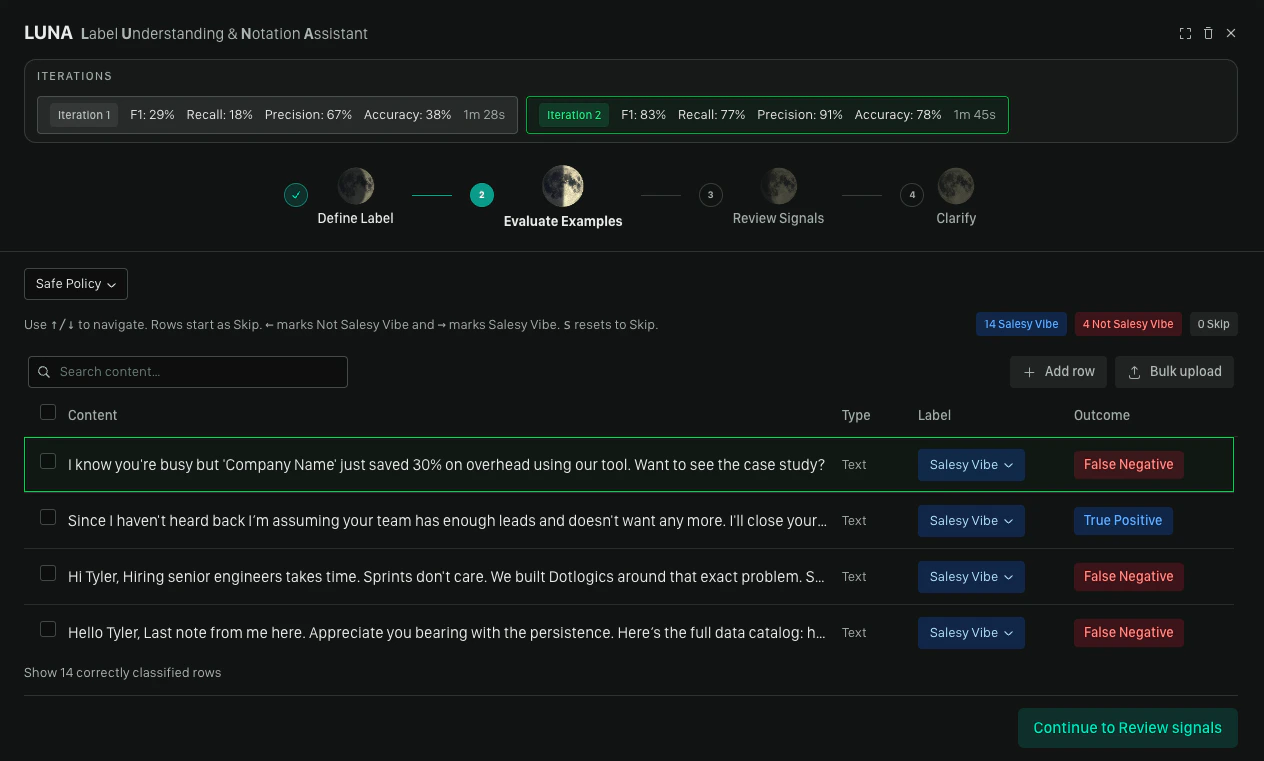
Once you have enough labeled examples, click Run evaluation. Moonbounce tests the generated syntax against your dataset and shows you which rows were correctly and incorrectly classified.- If all reviewed items are correctly classified, you can proceed directly to inserting the label
- If there are misclassifications, the copilot may automatically run an optimization pass (auto-patch) — if it finds deterministic improvements, it removes redundant rules and re-runs evaluation silently; a toast notification confirms any rules that were removed
Step 3: Review Signals
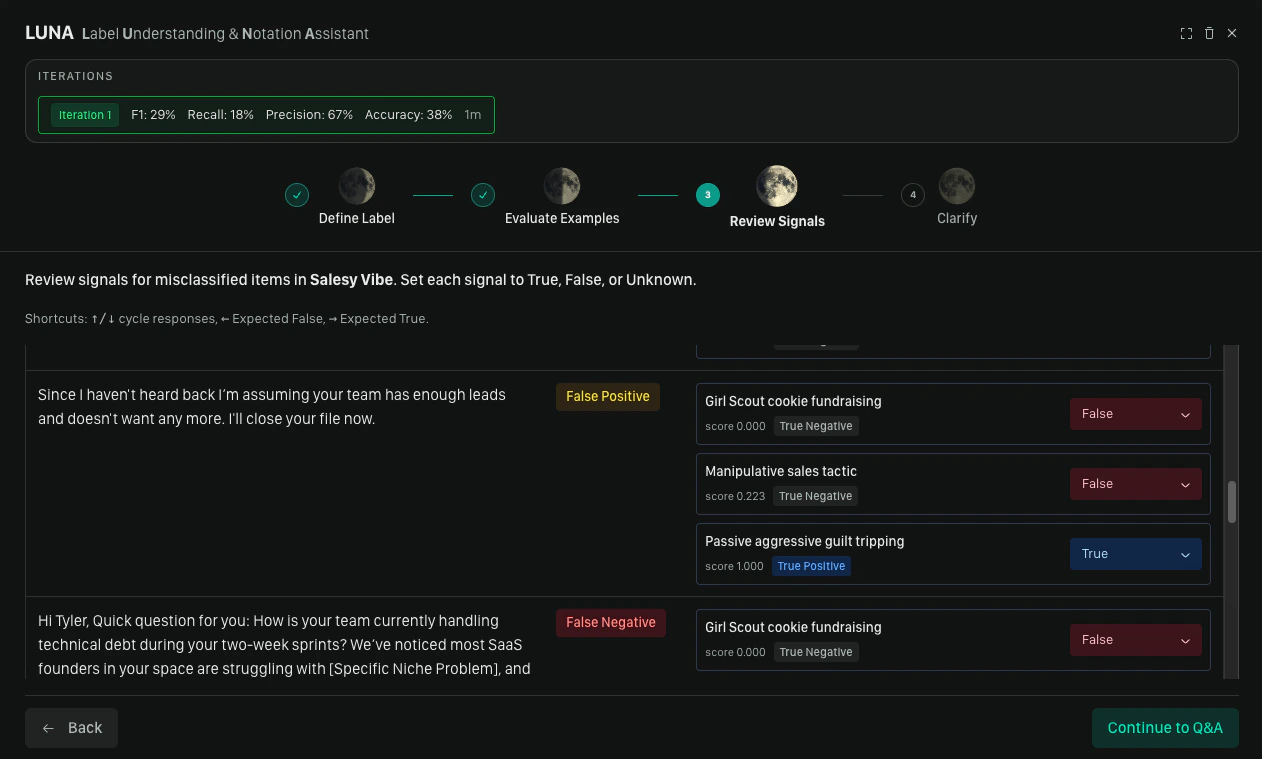
This step appears when misclassifications remain after evaluation. Signals are the individual rules that contribute to a label match. For each misclassified item, the copilot shows you the signals that fired and asks you to mark each one:
This feedback tells the copilot precisely which parts of the syntax are working and which are not, giving it the information it needs to produce a better refinement.
Step 4: Clarify & Refine
After signal review, the copilot generates clarifying questions based on the feedback it received. Each question is aimed at resolving ambiguity in the label definition — for example, distinguishing borderline cases or tightening the scope. For each question, either select a suggested answer or type a custom one, then click Submit. The copilot refines the DSL and returns you to the Define Label step with updated syntax already in the editor. From there, you can run another round of evaluation or insert the label if you’re satisfied with the result.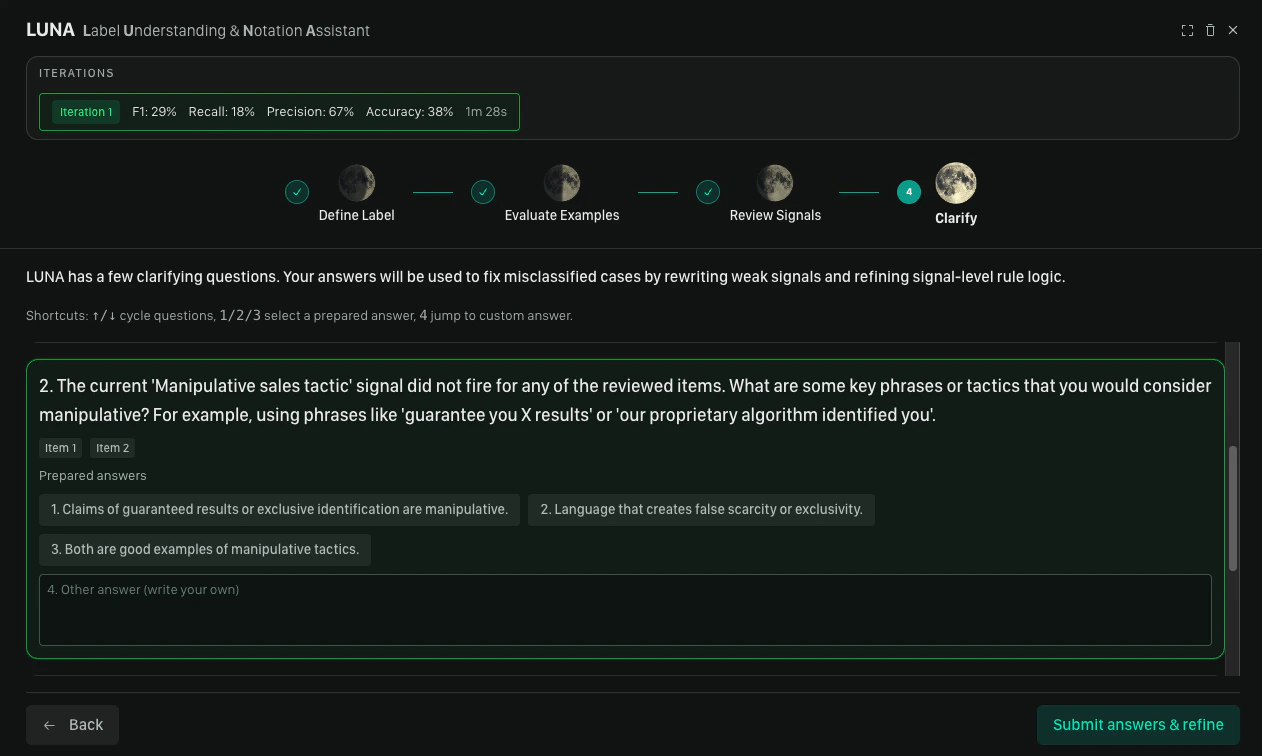
Inserting or Refining Your Label
At the end of a loop, you have two options:- Insert label selection — adds the label to your policy. Use this when the evaluation results meet your expectations.
- Evaluate Content — returns you to Step 2 to run another round of evaluation and refinement. Use this when you want to keep improving the label before committing it.
Tips for Best Results
- Be specific in your description. Vague descriptions produce vague syntax. Include examples of what the label should and should not apply to, edge cases, and context about your platform.
- Use a representative dataset. The evaluation step is only as useful as the examples in it. Include a realistic mix of positive and negative cases, including borderline examples.
- Expect iteration. One or two refinement rounds is normal. The label copilot is designed to improve with each pass of feedback.
We’d Love to Hear From You
Whether you have a suggestion, feedback, or a bug to report, here are the best ways to get in touch:- In the App: Use the Feedback button for direct suggestions.
- On Slack: Reach out to the team in your shared channel.
- With your AM: Talk to your dedicated account manager.
- Via Email: Send a message to support@moonbounce.io.
- Security, availability, or other incidents: Use the in-app Feedback button or email support@moonbounce.io. See Customer Feedback for what to include.